The goal here is to set a URL filtering policy that will caution the user about visiting a certain URL. Let’s say that the user wants to go to a gambling website. You don’t want to block it but maybe you feel that it’s best to warn the user that you are monitoring this activity. The user gets the Caution page with a Continue button, clicks on the button and can finally do some good old gambling.
Step 1
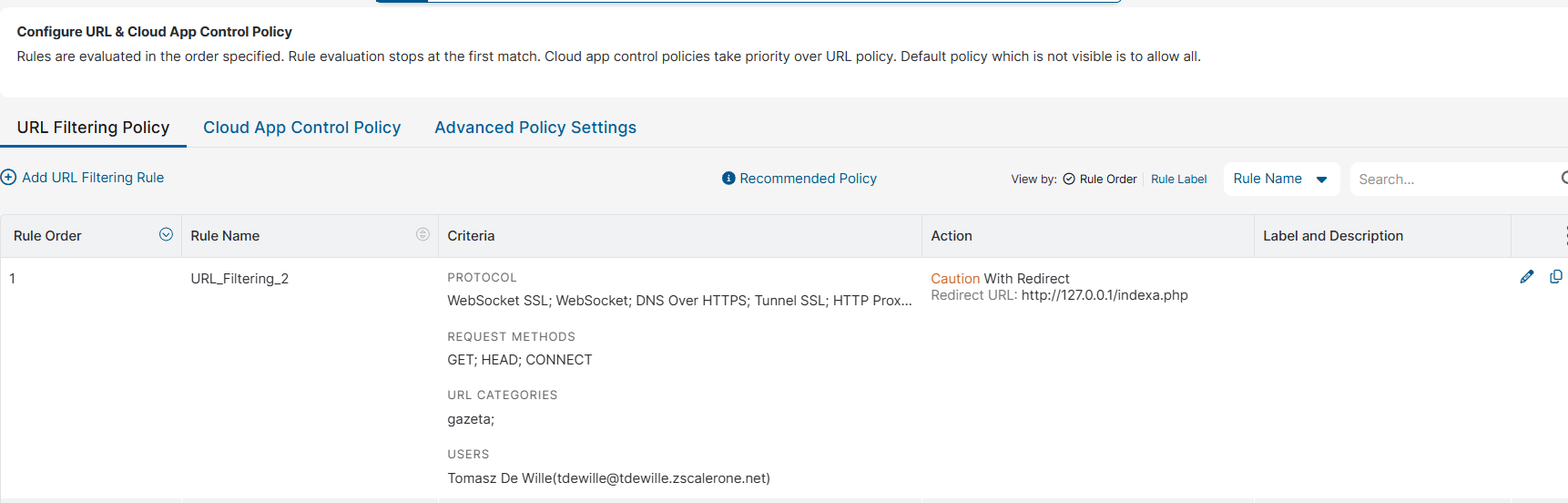
Create a URL policy with Action: Caution with Redirect
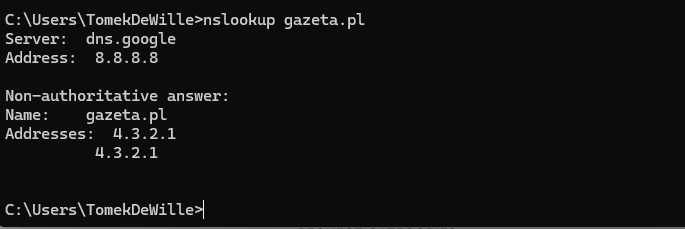
In my case the URL category ‘gazeta’ contains a popular news portal Gazeta.pl
Step 2
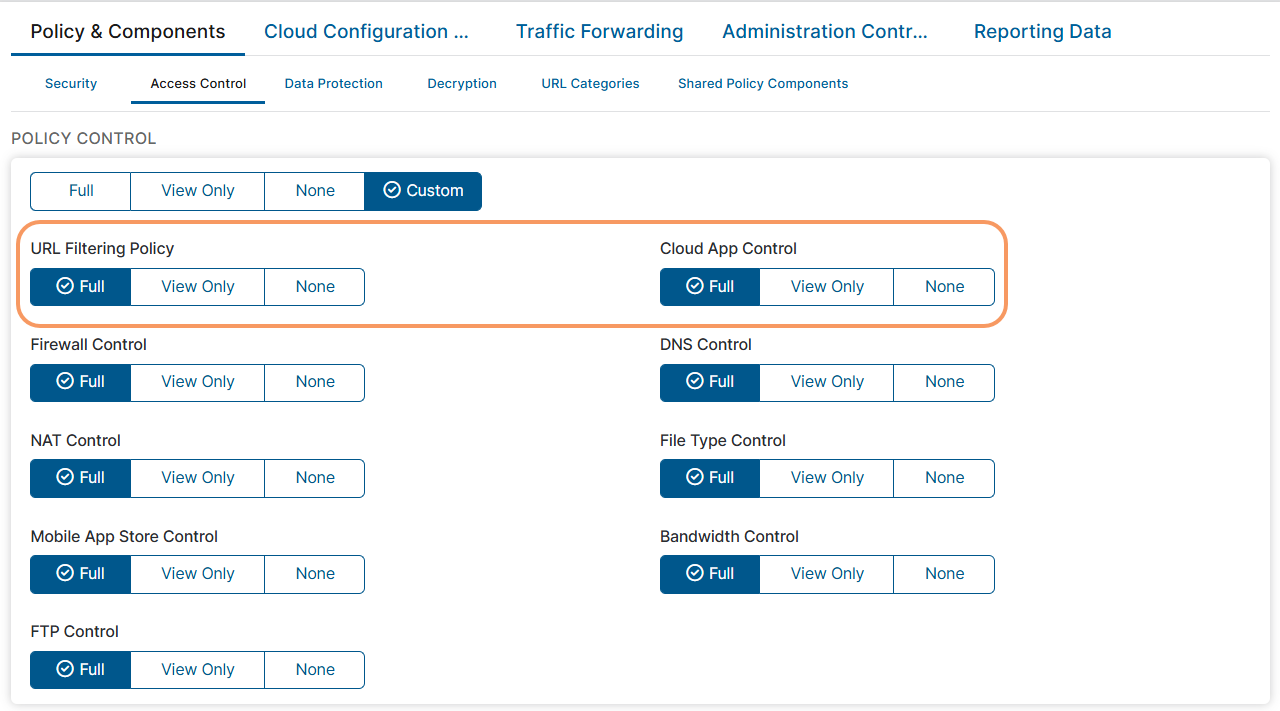
Activate the policy
Step 3
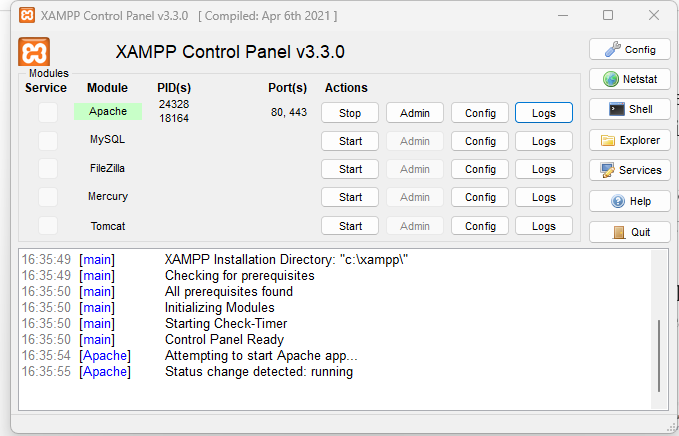
You need a server where you can host the redirect page. In my case it’s my own laptop with XAMPP software where I have the Apache server running, hence 127.0.0.1/indexa.php
Then create a file called indexa.php with the following code and put the file in the xampp’s htdocs folder.
<html> <head> <title>test</title> </head> <body> <?php $url = $_GET['url'] ?? ''; $referer = $_GET['referer'] ?? ''; $reason = $_GET['reason'] ?? ''; $reason_code = $_GET['reasoncode'] ?? ''; $timebound = $_GET['timebound'] ?? ''; $action = $_GET['action'] ?? ''; $kind = $_GET['kind'] ?? ''; $rule = $_GET['rule'] ?? ''; $cat = $_GET['cat'] ?? ''; $user = $_GET['user'] ?? ''; $lang = $_GET['lang'] ?? ''; $zsq = explode("zsq", $_GET['zsq'] ?? ''); ?> <h1>hello from Apache... YOU HAVE BEEN CAUTIONED MY FRIEND!!! </h1> <?php echo "Portal " . $url . " MAY HAVE BEEN COMPROMISED" ?> <pre> __ / _) _.----._/ / / / __/ ( | ( |/__.-'|_|--|_| /\_/\ ( o.o ) > ^ < / \__ ( @\___ / O/ (_____//_____/ U</pre> <form id="continue_action" method="GET" action=https://gateway.zscalerone.net:443/_sm_ctn> <input type="hidden" name="_sm_url" value="<?php echo htmlspecialchars($url); ?>"/> <input type="hidden" name="_sm_rid" value="<?php echo htmlspecialchars($zsq[0] ?? ''); ?>"/> <input type="hidden" name="_sm_cat" value="<?php echo htmlspecialchars($cat); ?>"/> <input type="submit" value="Continue" id="submitButton"/> </form> </body></html>
The animals are totally optional but the rest is not. Whether you decide to pass on other arguments to Zscaler is up to you but url, rid and cat are mandatory.
Step 4
Go to gazeta.pl and you can see the following instead:
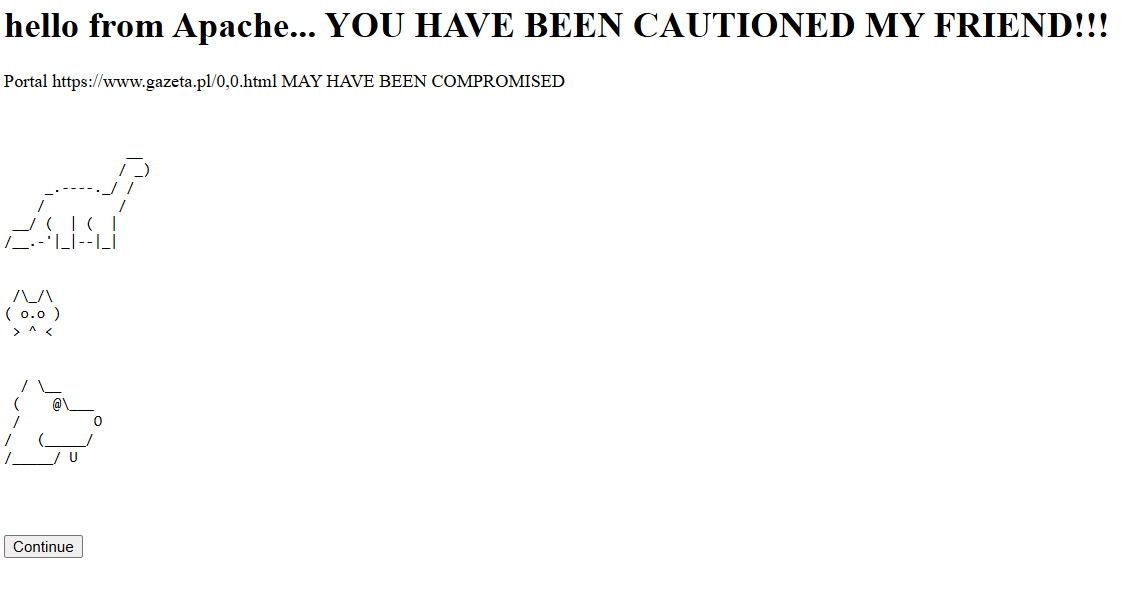
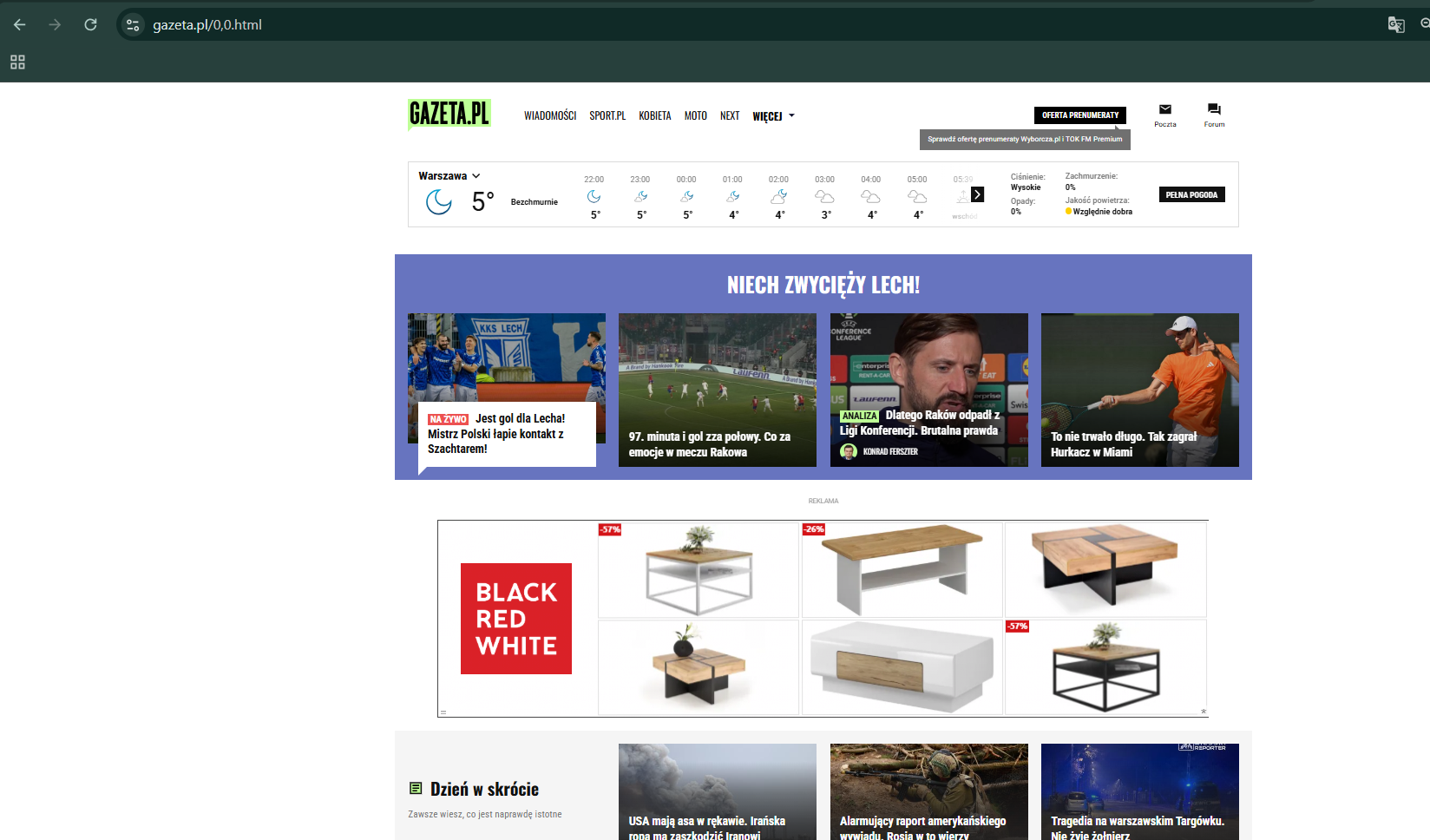
Click on the button and you can see the news portal.
You can change the action to Block with Redirect as well. In that case you don’t need to pass on the arguments to Zscaler because the user will never get to the original URL anyway